Leave QuickBooks
in an afternoon.
Export your QuickBooks Online transactions as a CSV, drop the file into IronTally, and your old chart of accounts lands as plain-language Schedule C categories. No Intuit API, no login to your QuickBooks account, nothing to approve.
1. Export your transactions from QuickBooks Online
QuickBooks Online does not have a one-click "export to CSV" button -- it exports reports to Excel, and CSV is one save step further. Here is the whole path.
- In QuickBooks Online, go to Reports and search for Transaction List by Date.
- Set the date range to cover the history you want in IronTally -- your whole book, or just this tax year.
- Select Customize, open Rows/Columns, choose Change columns, and turn on Account. Transaction Type is already on by default -- IronTally reads both of these to tell a real QuickBooks export from a plain bank file.
- Select Run report, then select the export icon and choose Export to Excel. QuickBooks downloads an .xlsx file -- there is no CSV option at this step.
- Open that file in Excel, Numbers, or Google Sheets, and use Save As (Sheets: File, Download) to save it as CSV (Comma delimited). That CSV is the file IronTally reads.
QuickBooks Desktop is not part of this guide. That export is Windows-only, and the wizard below does not read it.
2. Drop the CSV into IronTally
In IronTally, go to Import and start the QuickBooks Exit Kit. It is a three-step wizard. IronTally is not open yet -- the wizard below is built and these are real captures of it, but you cannot walk it yourself until the doors open.
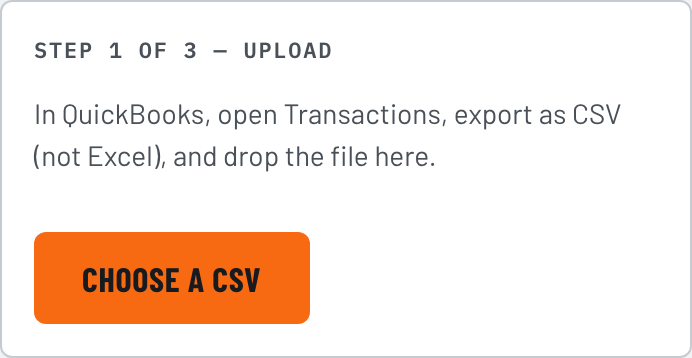
Step 1 -- upload
Choose the CSV you just saved. IronTally checks the header row for the shape of a real QuickBooks export before it goes any further -- a plain bank statement gets rejected here, not silently mangled.
Step 2 -- match accounts
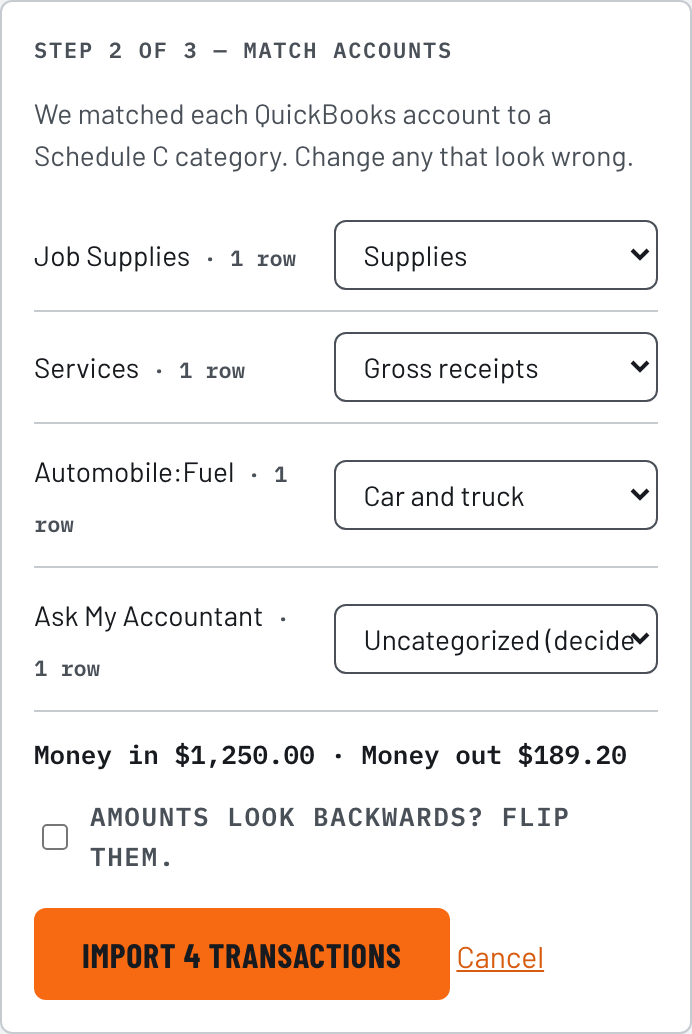
IronTally lists every distinct QuickBooks account found in the file next to a suggested Schedule C category. Change any that look wrong -- an account like "Ask My Accountant" has no safe default, so it comes in uncategorized on purpose, for you to decide. Money-in and money-out totals sit right below the list as a sign check; if they read backwards, check the flip box and the totals update live.
Import, and the report
Select Import and IronTally brings in every row. The report says exactly what happened -- added, skipped as already imported, or rejected as unreadable -- and links straight to the ledger so you can check the work.

What this does, and does not do
- CSV only, not Excel. The wizard reads a .csv file. If you still have the .xlsx QuickBooks gave you, save it as CSV first -- step 1 above.
- QuickBooks Online, not Desktop. Desktop's export is Windows-only, and there is no honest web-app way to read it. This guide, and the wizard, cover Online only.
- No Intuit API, no QuickBooks login. The wizard reads the file you exported yourself. IronTally never connects to your QuickBooks account, and there is nothing to approve on Intuit's side.
- Uncertain accounts are never guessed. A handful of QuickBooks defaults (Ask My Accountant, anything named Uncategorized) have no safe mapping, so they come in blank rather than under a wrong category. Everything else gets a suggested category you can still change before you import.
- Watch a lump-sum bank deposit. If you ever batched several customer payments into one QuickBooks bank deposit, that row's account can show your bank account instead of an income category. IronTally will not guess income for a row shaped like that -- pick the right category by hand in step 2.
- Running the same export twice will not double your books. Re-importing an identical file is skipped as a duplicate. Importing the same transactions through two different files (say, a QuickBooks CSV and a bank OFX covering the same dates) is not caught the same way -- IronTally warns you when it looks like that happened, but check the ledger before you trust the reports either way.